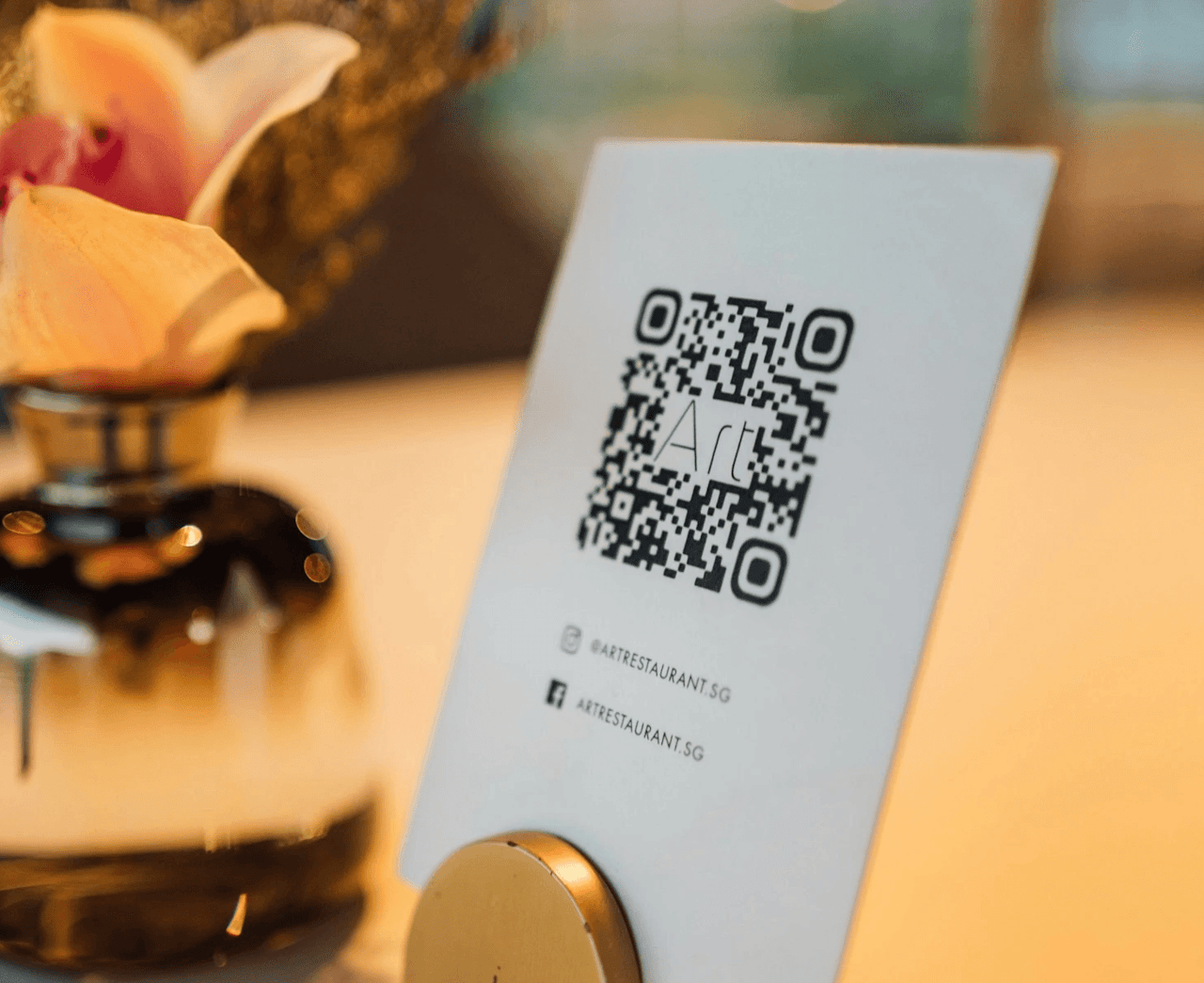
Creating a QR code for free takes only a few minutes. The useful part is not generating the black-and-white square—it is choosing the right destination, downloading a suitable file, and testing the finished design before anyone relies on it.
A QR code can open a webpage, registration form, menu, shared album, or event upload page. The code does not run that service by itself; it simply directs the person scanning it to the destination you encode.
Choose the destination before creating the code
Finalize the page or link first. Open it on your phone and confirm that it loads correctly, works on a small screen, and lets visitors complete the intended action without unnecessary steps.
- Use the complete https:// address.
- Remove tracking parameters that are not needed.
- Avoid a page that may soon be renamed or deleted.
- Do not encode sensitive information in a publicly visible code.
- For an event, make the destination immediately explain what guests should do.
For example, a wedding photo QR code should open the actual upload experience, not a homepage where guests must search for the album.
Create a free QR code in Chrome
Chrome includes a QR code creator, so you do not need to install an extension. Open the exact page you want to share, then follow Google’s current instructions for creating a QR code in Chrome. On a computer, the option is grouped with the browser’s page-sharing controls.
- Open the destination page in Chrome.
- Open the browser menu and find Create QR code under the sharing controls.
- Download the generated image.
- Rename the file so you can identify its destination later.
- Scan the downloaded file before placing it into a design.
Use another free QR code generator
A browser-based generator is useful when you need an SVG file for print or want more control over the design. Choose a provider that clearly explains whether it creates a static code or a provider-managed dynamic code.
- Select a website or URL code.
- Paste the final destination.
- Keep a dark code on a light background.
- Download PNG for basic digital use or SVG when available for print.
- Test the downloaded file before changing its color, size, or layout.
Be cautious with services that call a dynamic code “free” during setup but require a subscription to keep the redirect active. A static QR code is usually the safest free option when the destination will not change.
Static versus dynamic QR codes
Static QR code: The destination is encoded directly in the code. You cannot change it after printing. The code has no built-in expiration date, but it stops being useful if the destination page moves or disappears.
Dynamic QR code: The code normally opens a redirect controlled by a QR service. This may let you change the final destination or view scan data, but it also makes the code dependent on that provider and its plan.
Use a dynamic code only when you genuinely need those features and understand what happens if the account or subscription ends. If the content on a webpage can be updated while its URL stays the same, a static code may be all you need.
Prepare the QR code for print and screens
A code that works on your laptop can still fail after it is resized, placed on a busy background, or printed too small. Build for the real setting in which people will scan it.
- Use strong contrast: A dark code on a light, solid background is the most dependable starting point.
- Preserve the quiet zone: DENSO WAVE specifies a clear margin four modules wide around a standard QR code.
- Keep it square: Do not crop, stretch, blur, skew, or fold the code.
- Match size to distance: A card scanned at arm’s length can use a smaller code than a welcome sign viewed from several feet away.
- Avoid glare: Reflective frames and glossy coverings can hide parts of the pattern.
- Add context: Use an instruction such as “Scan to share your photos” and include a readable backup link when space allows.
The official DENSO WAVE QR code guidance explains the required clear margin. Do not estimate the final result from a design file alone—print a proof.
Test the final version before publishing
Always test the completed design, not only the original downloaded code. Exporting, compressing, resizing, and printing can all change the result.
- Scan it with both an iPhone and an Android phone when possible.
- Test the smallest printed version you plan to use.
- Scan from the distance people will realistically stand.
- Confirm that the correct page opens and that the intended action works.
- Test in ordinary indoor lighting and on the actual sign material.
- Print or order one proof before producing a large batch.
If the venue may have weak reception, provide the shareable link too. People can save it and finish the action later on a stronger connection.
Use a QR code to collect event photos
A generic QR code can open a gallery, but the destination still needs to accept uploads, handle viewing permissions, and give the host a practical download workflow. For that use case, an event photo platform is more useful than an ordinary webpage.
GuestSnap creates a unique event QR code and shareable album link. Guests scan the code, open the album in their mobile browser, and upload photos or videos without creating an account or installing an app. The event plan costs $45.
Use the supplied GuestSnap code rather than generating a replacement. Place it into one of the free editable event QR code templates, then apply the same contrast, spacing, and testing rules above. See how GuestSnap photo sharing works for the full guest flow.
Frequently asked questions
Do free QR codes expire?
A static QR code has no built-in clock and continues to encode the same information. Its destination can still stop working. A dynamic code can also fail if the service controlling its redirect disables it.
Can I change a QR code after printing it?
You cannot change the destination encoded in a static code. You can update the content of a webpage while keeping its URL unchanged, or choose a dynamic redirect when changing the destination is essential.
How large should a printed QR code be?
There is no universal size because scanning distance, print quality, and code complexity all matter. About one inch is a practical starting point for a card scanned nearby. Use a larger code for signage and always test the actual print at the expected distance.
Can a QR code collect photos by itself?
No. It opens a destination. To collect photos, point it to a gallery or upload page that accepts guest contributions and gives the host appropriate visibility and download controls.
Free QR code checklist
- Final destination confirmed
- Static or dynamic choice understood
- High-quality file downloaded
- Clear margin preserved
- Useful call to action added
- Final design tested on multiple phones
- Backup link provided where practical
For more ways to use the result, explore how QR codes help at events. The reliable code is the one that opens the right mobile experience every time—not the one with the most decoration.