
An anniversary party brings together people who have known the couple for very different lengths of time: children, grandchildren, old friends, neighbors, and colleagues. Each of them takes photos during the evening, and many already have pictures of the couple from earlier years. The simplest plan is one album, one QR code, and one link that everyone can use.
Three things set an anniversary apart. Guests often span several generations, so the QR code and the link both need to be easy to use. Many of the best pictures are earlier photos of the couple, so start collecting before the party. And the host is often an adult child, grandchild, or sibling, who can set up and host the album on their behalf.
Decide what the album should hold
Photos from the party itself
Toasts, the first dance, family groups, and table candids are easiest to collect while guests still have their phones out. Ask for them during the party and again the next day.
Earlier photos of the couple
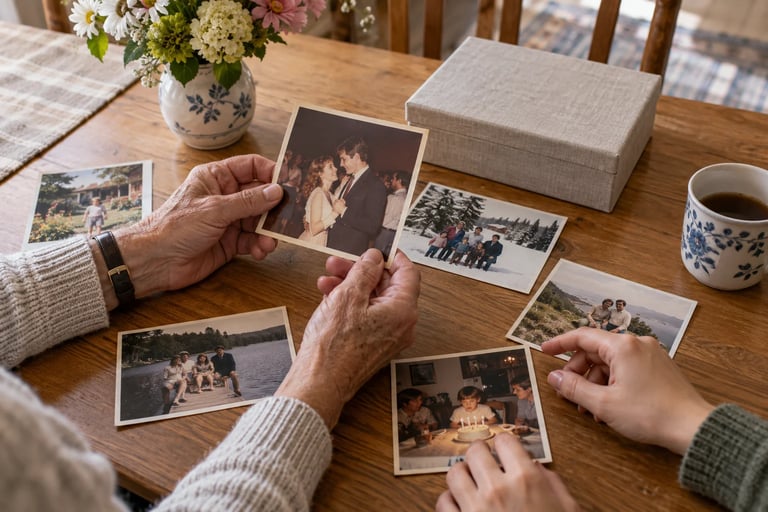
Guests add photos and videos that are already on their phone, so an old print needs to become a phone photo first. Ask one relative to gather prints from the people who have them, photograph each one flat in even daylight without flash or glare, and upload them in one batch. Set a deadline a few days before the party so the pictures are in the album when guests arrive. Decide whether you want these earlier photos in the same album as the party photos, and say so in your request.
Set up one album and choose its date
With GuestSnap, guests scan a QR code or open the event link and upload in their browser, without installing an app or creating an account. The QR code automatically opens 7 days before the event date. If you want earlier photos before the party, move the event date earlier before the event becomes active. The 12-month upload period is measured from the date you choose. The 18-month viewing and download period, after which photos and videos are permanently deleted, is also measured from that date, so an earlier date moves both deadlines earlier. Once the event is active, contact support to change the date.
One event can also cover several gatherings, such as a dinner and a family brunch the next day. Use the first event date when you set it up. The same QR code and link work throughout, and uploads remain open for 12 months from the date you choose.
If you’re hosting for your parents or grandparents
You can buy the event yourself and add the couple, or a sibling, as a co-host by email. They can sign in with that email and help manage the event without buying one. You remain the host. Co-hosts can edit event details and gallery settings, view all media, and download photos and videos. Their access starts as soon as you add them, so if the party or the photo collection is a surprise, wait until afterward to add the couple. If the couple should own the event instead, choose Transfer event and review the access changes before confirming. For a multi-household family gathering, see family reunion photo sharing.
Decide what guests can see
By default, guests can see each other’s uploads as they arrive. If the family prefers, turn off “Allow guests to view media from other guests” under Event Gallery Controls. Guests will then see and download only their own uploads, while the host and signed-in co-hosts still see everything. Make your signs match that choice. When guest viewing is off, the sign can say “Your photos go straight to the hosts.”
Invite older photos before the party
Send the link in the invitation or a family group message once the album is open. Be specific: ask for one or two photos of the couple from any year, plus anything from the party itself. Guests can select several photos and videos at once.
Make the QR code easy for every generation
Put a table card at each table and one near the entrance. GuestSnap includes free editable Canva templates, including 5" x 7" table cards and 2" x 3.5" take-home cards, and a paid Canva account is not required. Download the QR code as a PNG from the GuestSnap dashboard and place it on one of those templates or your own design. Print one sample and scan it with an iPhone and an Android phone before printing the rest. For relatives who prefer not to scan, text them the link so they can simply tap it, and ask a grandchild or friend to help anyone who gets stuck.
If guests still aren’t adding photos, How to Get Guests to Share Photos at Your Event covers why guests hold back and how to fix each reason.
Sign and message wording you can copy
- Table card: “Celebrating [number] years of [Names]. Scan to add your photos and videos from tonight, and any old favorites of the two of them. No app needed.”
- Older-photos request (send once the album is open): “Have a photo of [Names] from over the years? Add it to the anniversary album here: [link]”
- Day-after text: “Thank you for celebrating with us. If you took photos last night, you can still add them here: [link]”
Show the photos during the party
GuestSnap includes a live slideshow that runs on a computer. Select “Play slideshow” in the top-right of the gallery, next to Sort. It plays full screen and adds new photos as guests upload them, so older pictures of the couple collected before the party can play alongside tonight’s photos. Videos stay in the gallery and don’t play in the slideshow. Before guests arrive, connect a computer to the venue’s screen, open the gallery, and start the slideshow to check how it looks. If you’ve told guests that only the hosts will see their uploads, keep the slideshow off the shared screen.
After the party: follow up, download, and keep a backup
Send the link again the next day so late photos of the party can still join the album. Give the couple their own copy of the full-album download, which contains the original uploaded files, and keep one family backup before access ends. Guests can keep uploading for 12 months from the event date, and the gallery stays available for viewing and downloading for 18 months, after which the uploaded photos and videos are permanently deleted. On iPhone or iPad, the free optional GuestSnap app can save photos and videos straight to Photos. It requires iOS or iPadOS 17 or later.
Anniversary photo checklist
- Choose one album and one link for the whole celebration.
- Set the event date early enough to collect older photos.
- Add co-hosts and decide what guests can see.
- Print table cards and test-scan one with iPhone and Android.
- Send the link before the party, during it, and the next day.
- Test the computer slideshow on the venue screen.
- Give the couple a copy of the full-album download, and keep one backup.
For a full before, during, and after plan that is not specific to an anniversary, read How to Plan Event Photo Sharing Before, During, and After.
GuestSnap costs $45 per event, not per month, and includes unlimited guests, photos, and videos subject to reasonable fair use, a live slideshow, editable QR templates, and the original uploaded files in the full-album download. See pricing or read the GuestSnap product facts to plan your anniversary album.